
Keywords are what Octolens searches for across every tracked platform. Good keywords surface real conversations you want to be part of; bad ones bury your feeds in noise and burn through your monthly quota. Every keyword you track lives on the dedicated Keywords page in the sidebar.Documentation Index
Fetch the complete documentation index at: https://octolens.com/docs/llms.txt
Use this file to discover all available pages before exploring further.
During onboarding
Octolens suggests 4 starter keywords based on your company context, typically a mix of your own brand, competitors, and industry terms. You can edit, remove, or replace them during onboarding, and you can always change them later from the Keywords page.The Keywords page
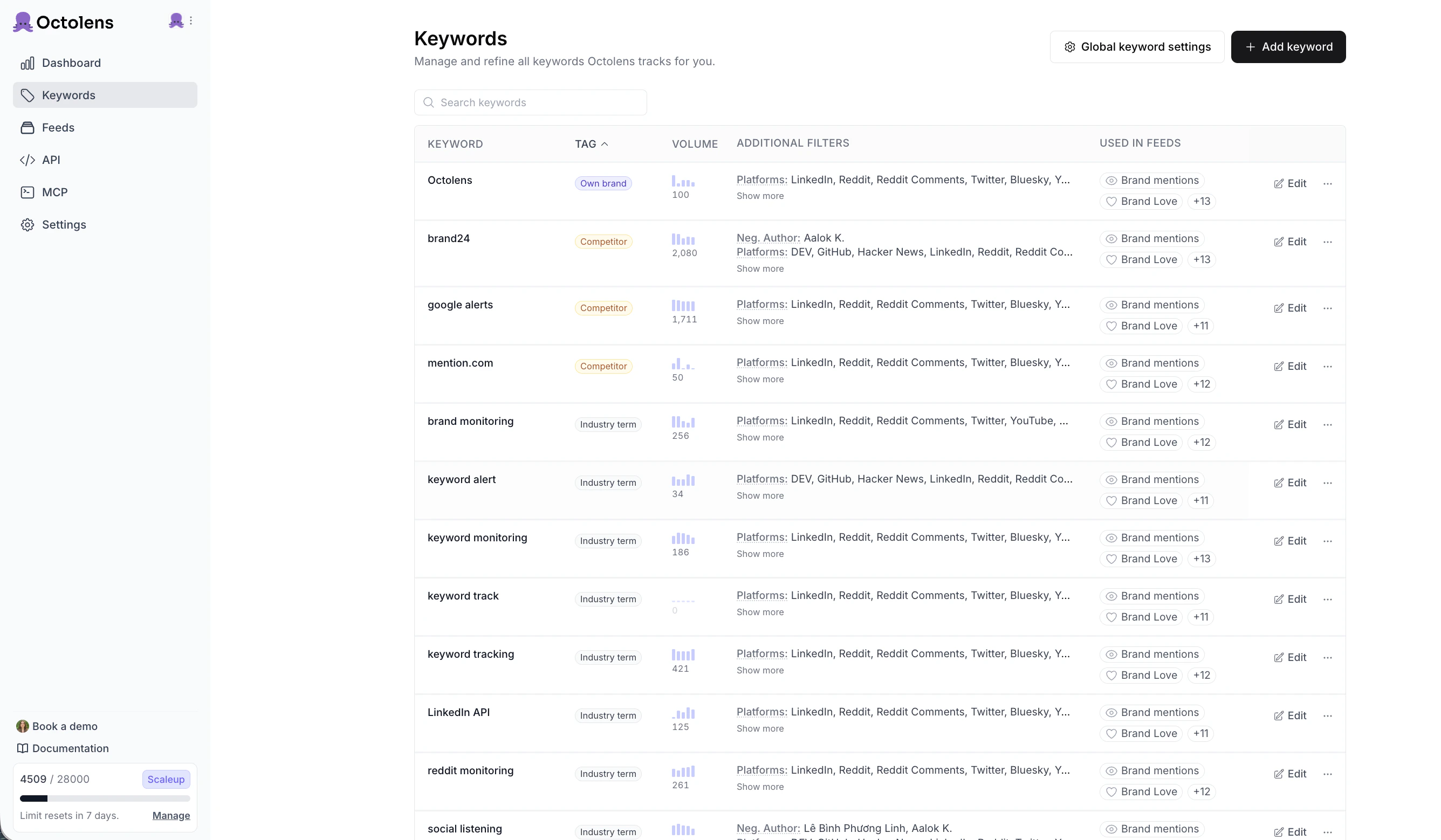
Open Keywords from the sidebar to see every keyword you track in one table. Each row shows:- Keyword: the term you’re tracking
- Tag: the type —
Own brand,Competitor, orIndustry term - Volume: a sparkline of recent mentions, useful for spotting noisy keywords at a glance
- Additional filters: the platforms and include/exclude rules currently applied to this keyword
- Used in feeds: which feeds include this keyword
- Edit / ··· : open keyword settings, pause, or delete
Add a keyword
Click + Add keyword in the top right of the Keywords page. The Add keyword sheet opens.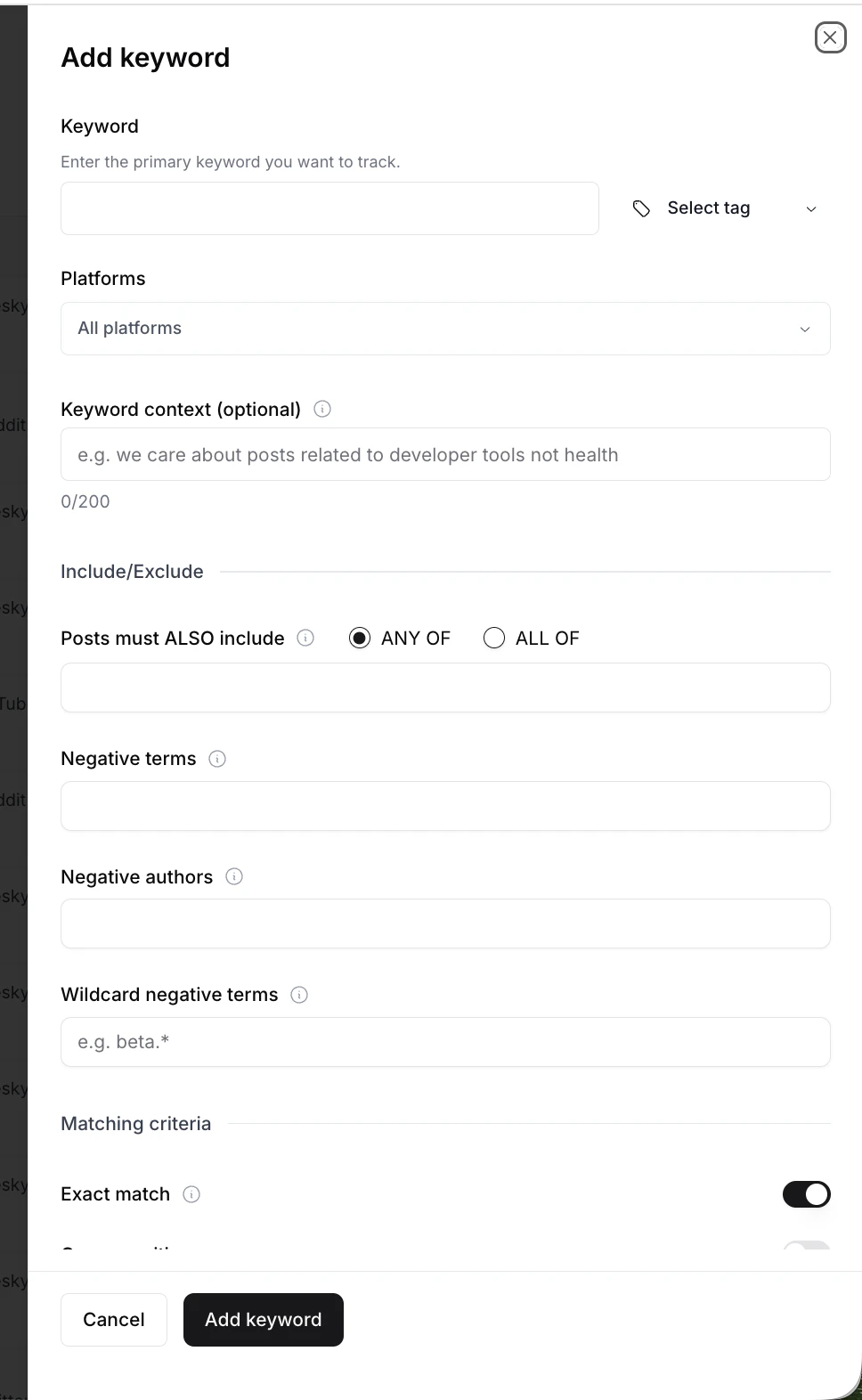
- Tag: AI assigns one of Own Brand, Competitor, or Industry Term based on your company context. You can change it from the Select tag dropdown when you add the keyword, or later in Keyword Settings.
- Smart defaults for common words: if your keyword is also a common word (e.g.
Railway,Arc,Modal), the AI pre-fills keyword context, negative terms, and “any of” terms so you catch the brand, not the noun. You can edit any of it in Keyword Settings.
What each keyword catches. You only need to add the keyword once. Octolens automatically matches common variants, so for the keyword
octolens you’ll get mentions like:- The exact keyword:
octolens - The keyword within a domain:
octolens.com - The keyword as a handle:
@octolens - The possessive form:
octolens's
Backfill on new keywords. When you first sign up and choose keywords during onboarding, Octolens looks back 7 days and pulls posts per platform. Same goes for when you add a new keyword. These backfill mentions do not count toward your monthly quota.
Need more keywords than your plan includes?
Every plan has a keyword limit, but you’re not stuck with it. Workspace admins can add Flex keywords from Settings → Plans & Billing on any plan. Extra keywords are billed monthly and can be added or removed at any time. See your Plans & Billing page for the current rate.Manage an existing keyword
Click Edit or the ··· at the end of any row on the Keywords page:- Keyword settings: edit tag, platforms, context, and include/exclude rules. See Keyword Settings.
- Pause keyword: stop pulling new mentions for this keyword without deleting it. Existing mentions stay in your feeds. Useful when you hit your mention limit or want to quiet a noisy keyword temporarily.
- Delete keyword: permanently remove the keyword and all its mentions. This can’t be undone.
General tips
Be specific. Avoid overly broad terms like “open source,” “strategy,” or “software.” They clutter your feeds and burn through your monthly quota. Test and tweak. If you see no hits after a few hours, broaden the keyword. If you see too much noise, narrow it or add exclusions in Keyword Settings. It usually takes a couple of rounds to get right. Watch common words. If your brand is a common word, Octolens will pre-fill context and negative terms for you (see above), but a quick review of those defaults before you save pays off. You can also enable case-sensitive matching in Keyword Settings to cut out most common-word noise.What to track
Most customers track keywords in three buckets, the same three tags the AI assigns:Own Brand: your company and product names
The most important keywords. If someone mentions you, you want to know.
Example: We track Octolens.
Competitor: companies you compete with
Tracking competitors turns up:- User complaints you can respond to with a better alternative
- Content inspiration from their announcements and launches
- Features customers love that can inform your roadmap
Example: A post saying “Looking for alternatives to [Competitor]” is a clear buying signal.
Industry Term: the problem you solve
Terms your audience uses when discussing your space, even when they don’t mention your product.Example: We trackThese are where you’ll find people asking for recommendations or venting about pain points. Prime moments to show up.social listening,keyword tracking, andsocial media monitoring. A project management tool might trackproject planning toolortask tracker recommendations.
Next steps
- Keyword Settings: per-keyword tag, platforms, context, and include/exclude rules
- Global Keyword Settings: account-wide exclusions that apply to every keyword
- Feeds: organize mentions across keywords into saved filters